
Set up NZBGet
with EasyUsenet.
NZBGet is written in C++ and needs hardly any memory or processing power. That makes it the first choice for a NAS, a Raspberry Pi and any server that runs around the clock anyway.
Install NZBGet
Download the version for your system. On a NAS you will find NZBGet in the package centre; on a Raspberry Pi the quickest route is the package manager or a Docker image.
- Windows, macOS, Linux, Synology, QNAP, Unraid, Raspberry Pi
- About 30 MB of free disk space – considerably less than SABnzbd
- A browser to operate it
Open the web interface
Open http://localhost:6789, or on a NAS its address with port 6789 instead. Log in with the default credentials and then change them under Settings → Security.
Enter the server details
Open Settings → News-Servers and enter our details under Server1 . Set Encryption to yes – that is TLS/SSL.
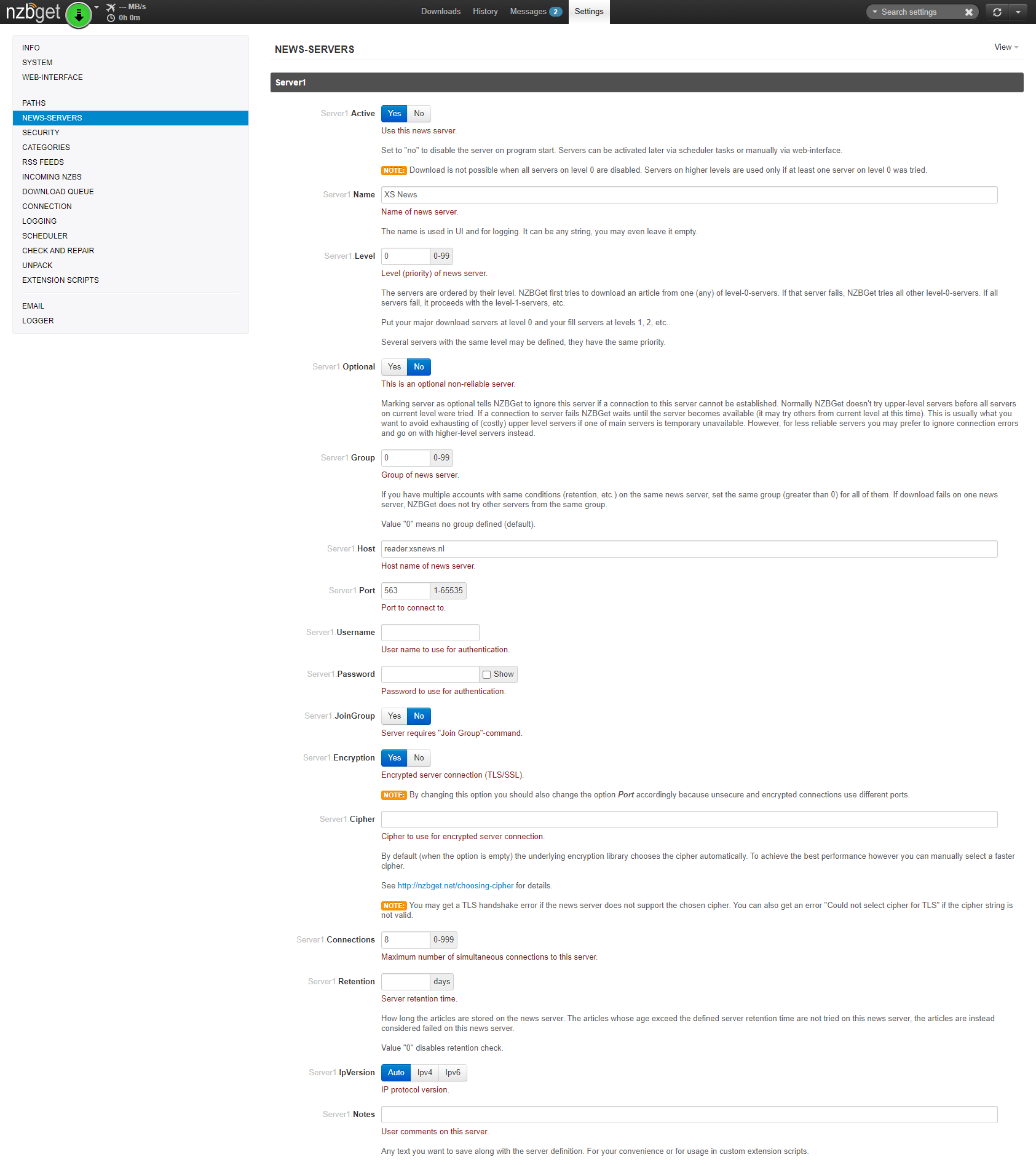
Test the connection
Click Test Connection. On success NZBGet reports “Successful”. After that, be sure to click Save all changes – NZBGet does not save changes automatically.
Folders and categories
Under Settings → Paths you set the folders; under Settings → Categories you can optionally add rules that sort finished downloads automatically.
- InterDir: downloads in progress
- DestDir: finished downloads
- Categories save a lot of tidying up later
Start your first download
Upload an NZB file via Add or drag it into the window. NZBGet downloads across all 100 connections, verifies, repairs where needed and unpacks automatically.
No access yet?
Unlimited Usenet from €3.98 a month – full performance in every plan.
Questions about NZBGet
What we are asked most about this guide.